
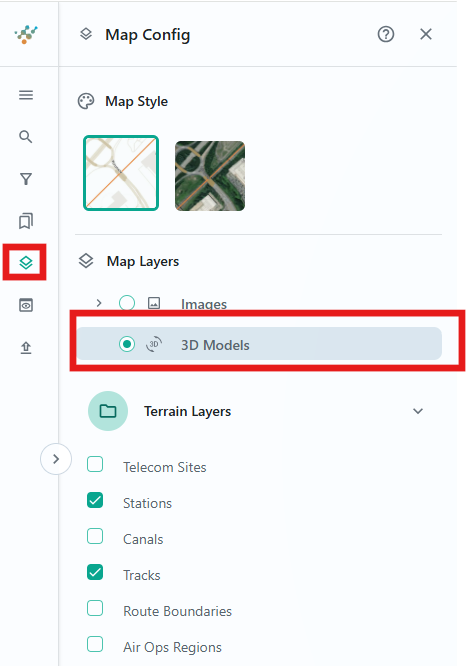
3D models can be viewed from the background mapping. Simply go to the ‘Map Layers’ section of the side panel and select the 3D Models from the data selection. The data overlaid on the background mapping will update showing the 3D Models available to view:
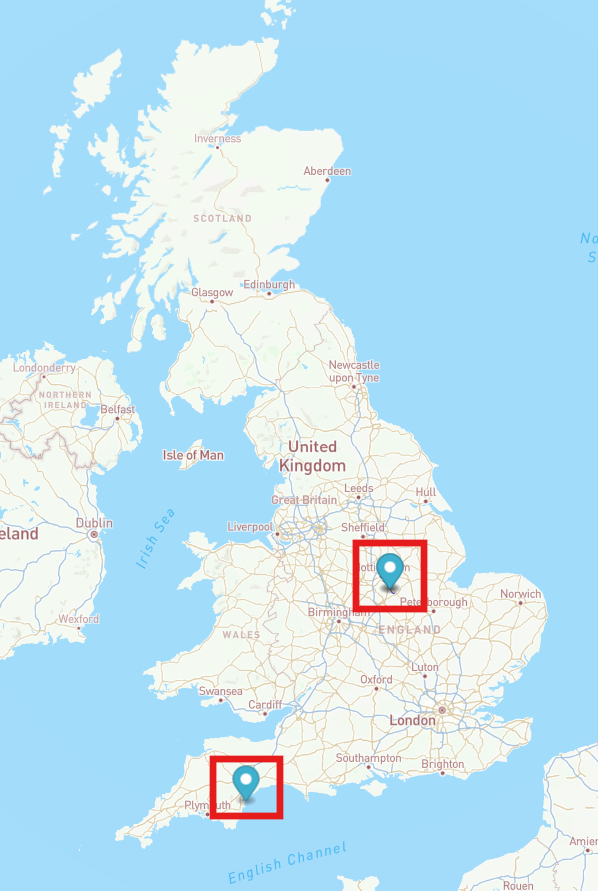
Zoom into the background mapping to see the area covered and extent of the 3D model that you wish to view:
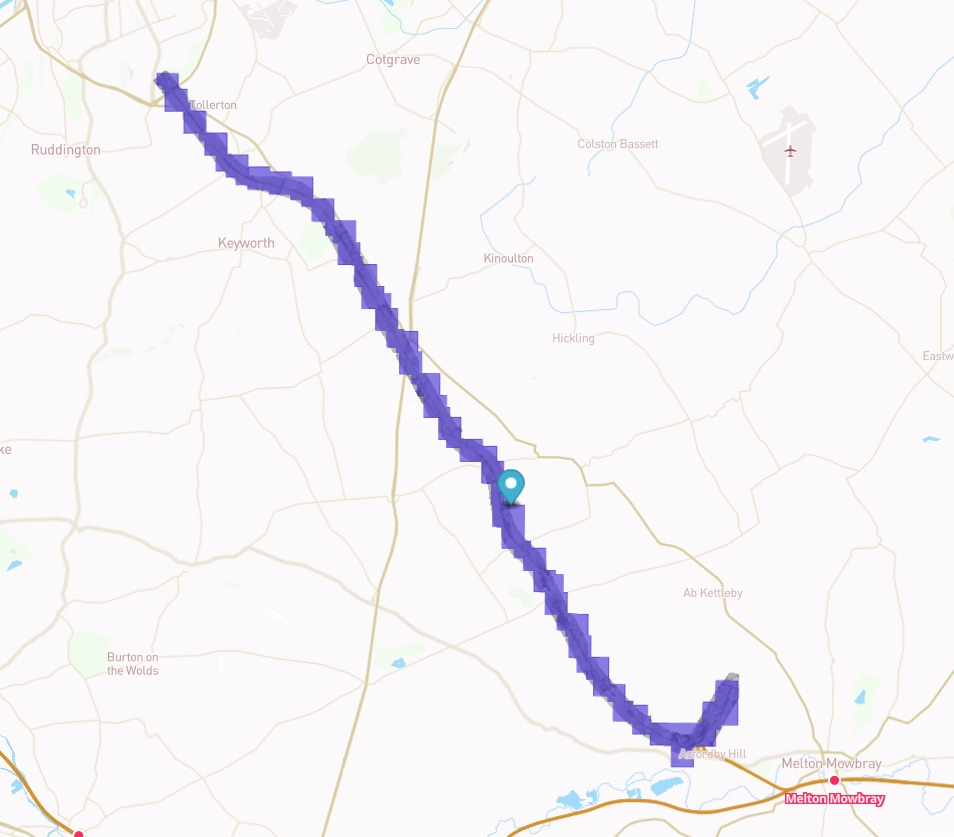
To open the 3D model zoom into the bounding box and left click a section of the bounding box you wish to initially expect. This will open the 3D model at the area you have selected from the mapping. If there is numerous datasets for the model then this will be selected from a label that appears after you have clicked the 3D model’s bounding box:
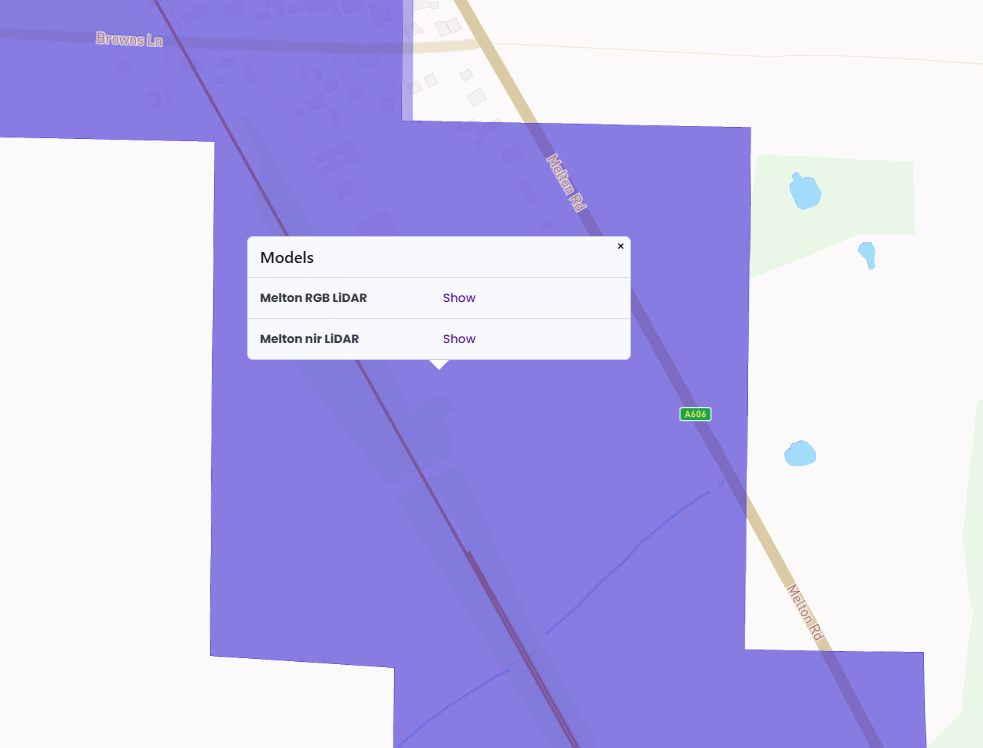
Select one of these model types if applicable and you will then see the background mapping load the 3D Model Viewer page. As mentioned previously this will be in the area that you have highlighted:
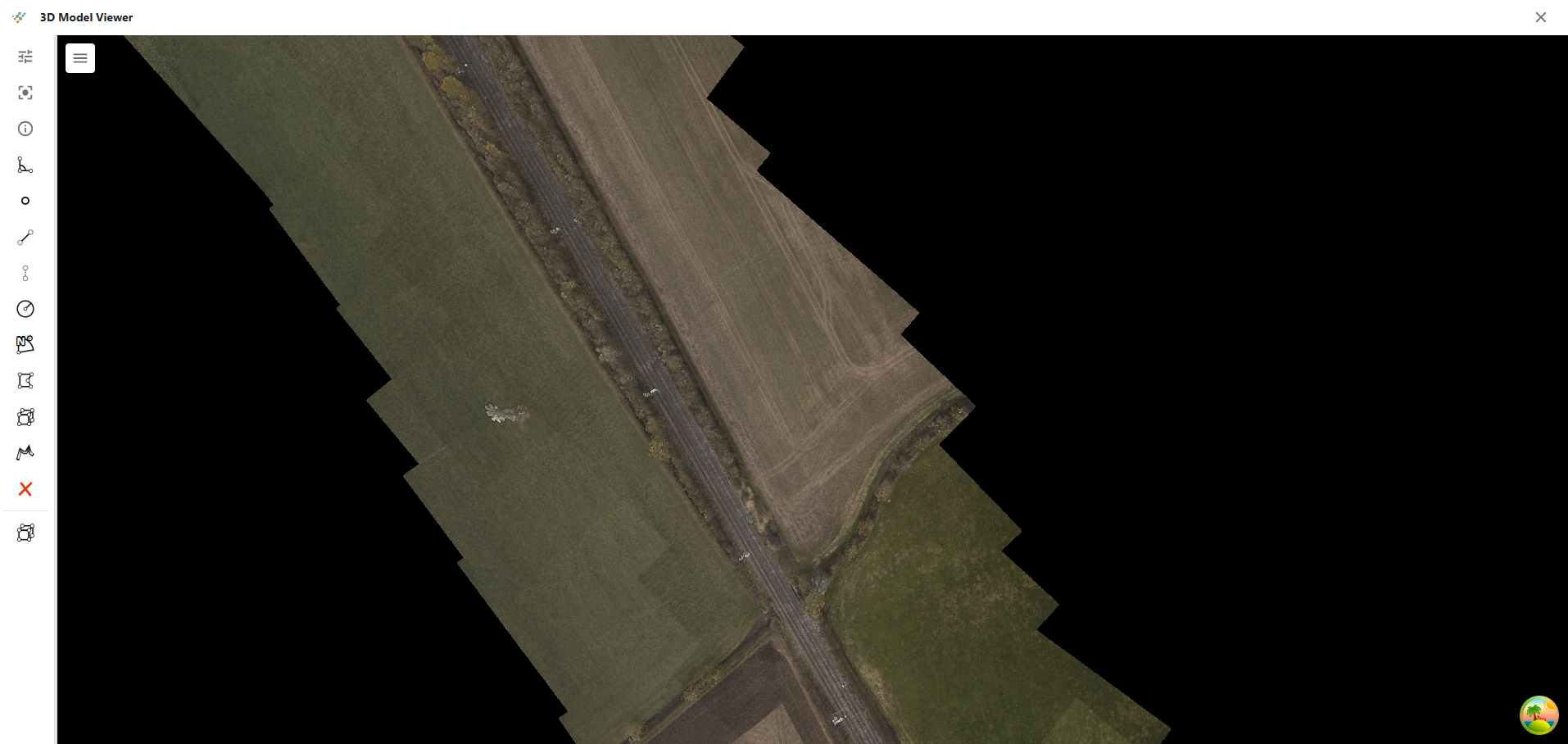
From here the model can be interacted with further and a number of measurements and inspections taken. To zoom in our out of the model, use the scroll of your mouse or trackpad, focused around the cursor of the mouse. To drag the model to inspect a different section, left click + hold and move the mouse in the direction you wish to move the model. To rotate the model around a point, right click + hold and move the mouse in the orientation you would like to view from. Using a combination of these inputs a desired viewpoint of the model can be easily attained.
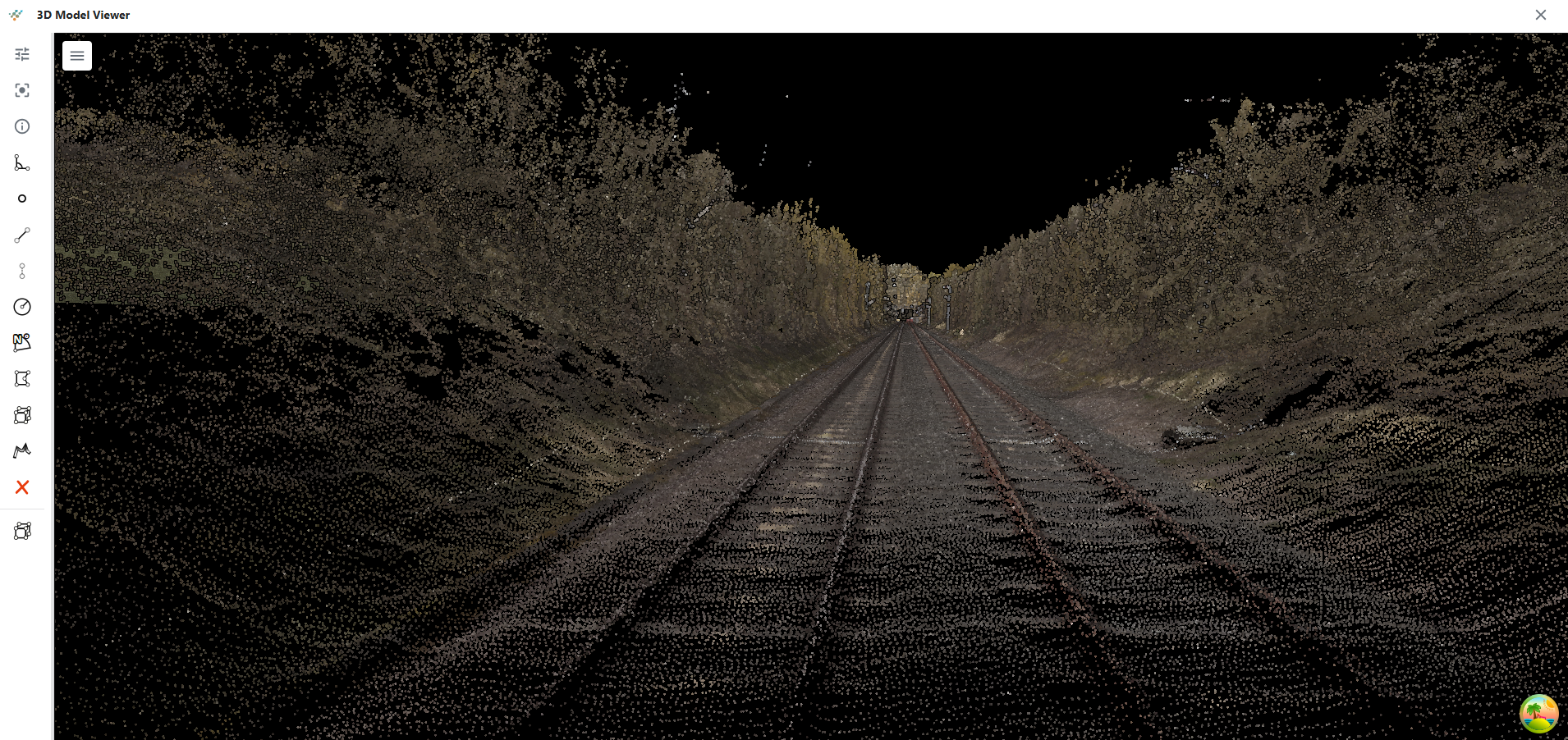
From here a number of inspections and measurements can be taken. The model’s appearance settings can also be updated to update the quality of the model or change the lighting settings applied to the model:
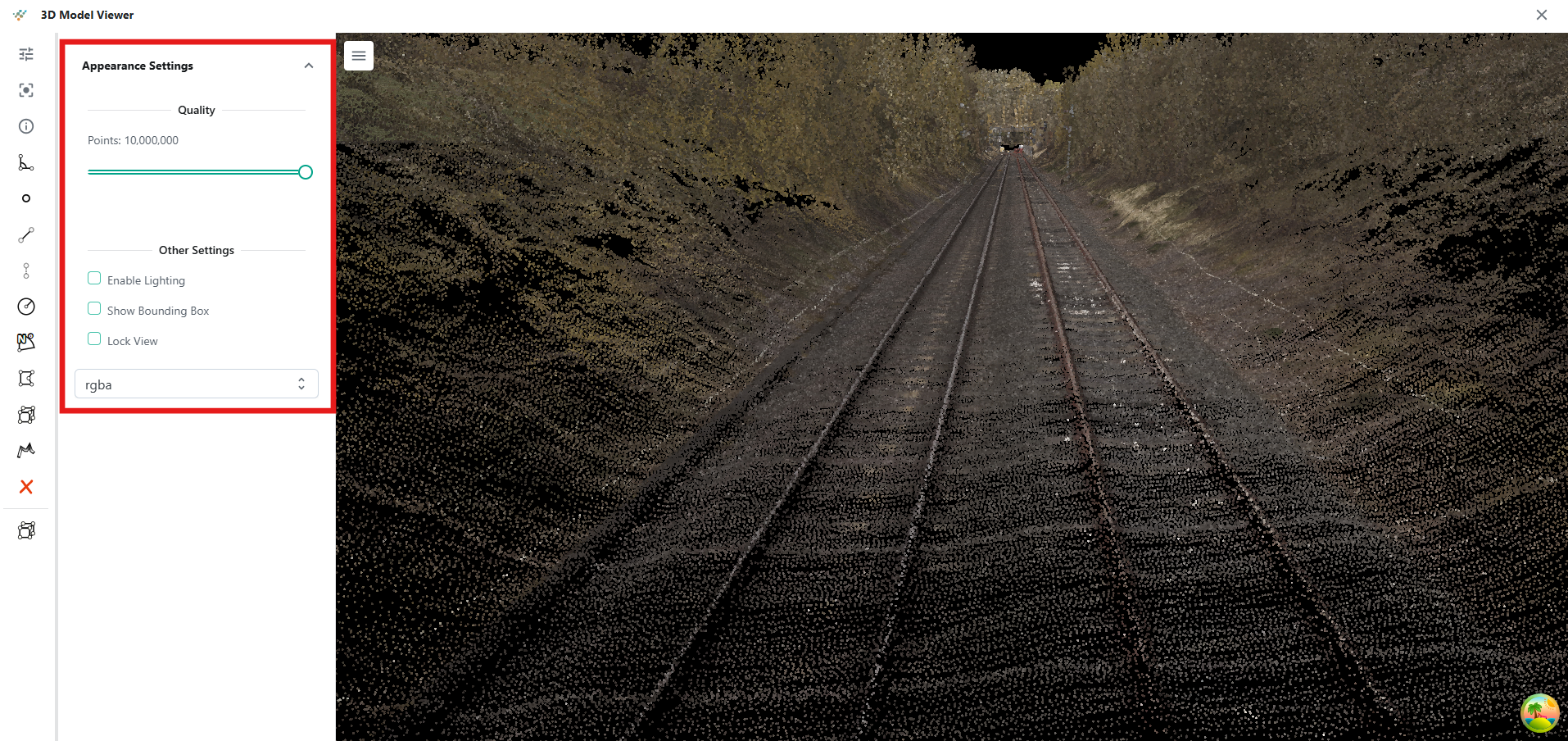
The inspection and measurement tools available listed on the side panel available are as follows:
-
Viewer Appearance
-
Recenter Model
-
Inspection Tool
-
Angle Measurement
-
Point Measurement
-
Distance
-
Height
-
Circle
-
Azimuth
-
Area Measurement
-
Area Measurement (3D)
-
Profile
-
Remove All Drawings
-
Clip Volume
To take a measurement select the tooltip from the side panel of the 3D model viewer. Left click the section of model you wish to measure from. For multiple measurements select the various points which you would like to measure. To finalise the measurement left click the mouse and the results will be labelled on the model:
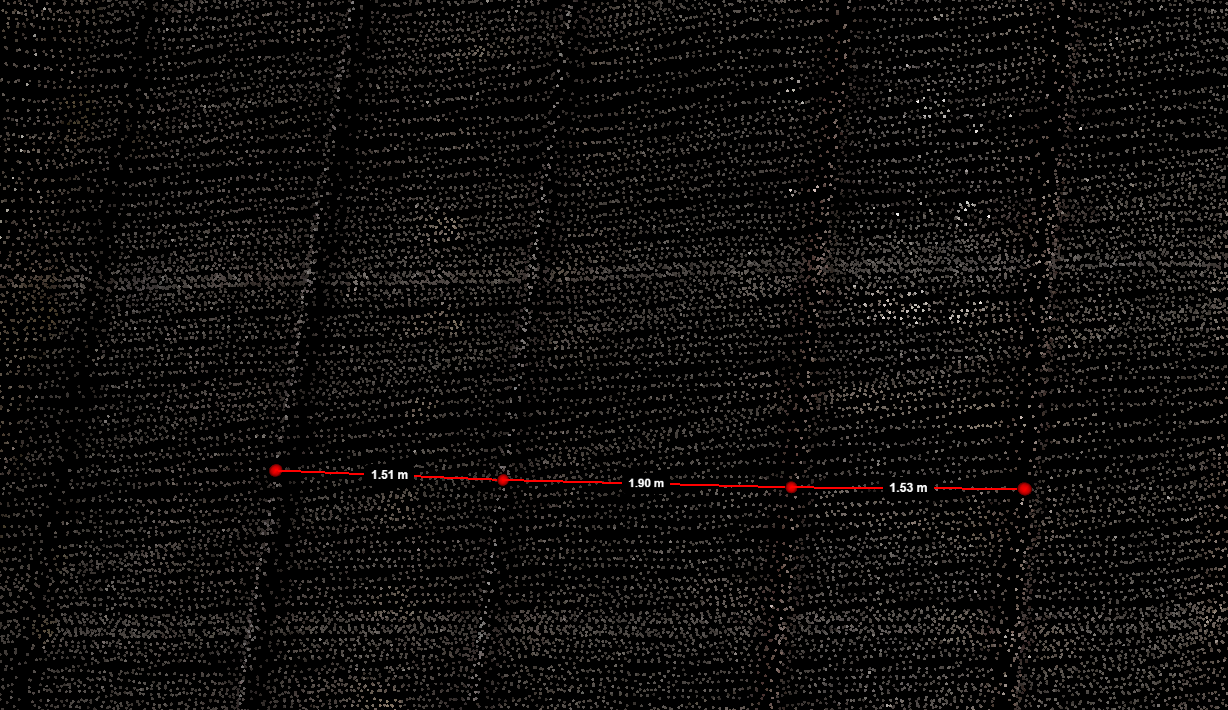
Various and multiple measurements can be added to the model. These are not saved permanently and will be removed on closing the model. To remove the drawings without closing the model simply left click the remove drawings tooltip in the sidepanel.
To return the background mapping from where the model was selected left click the cross in the top right corner of the 3D Model Viewer:
