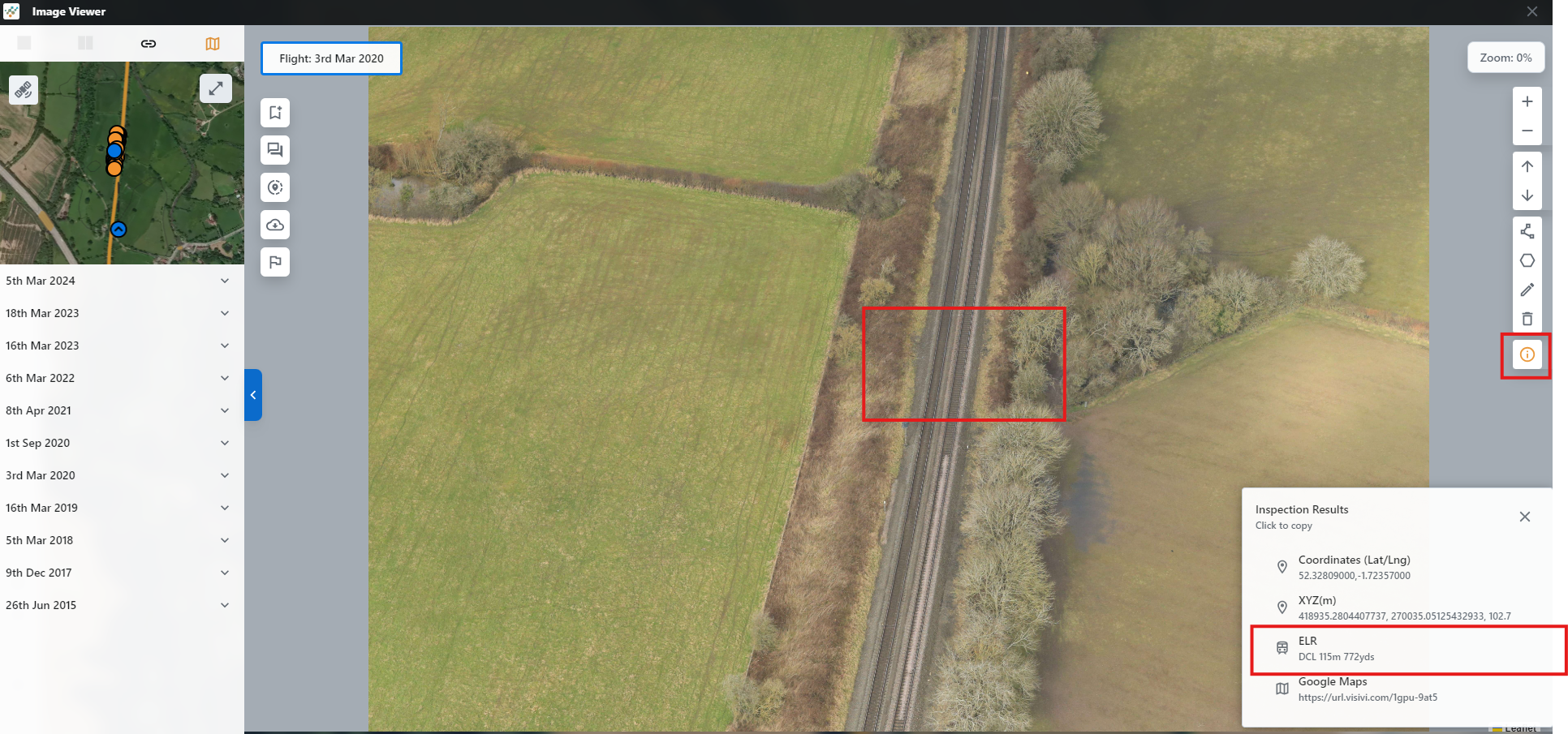
ELR data is integreated into Routeview to be searched for, as well as identified from the background mapping and full screen imagery.
Searching ELR
Selecting the search icon from the left sidepanel opens up the search function in Routeview. From here select the ELR tab in the top left corner of the search panel and this will open the ELR search:
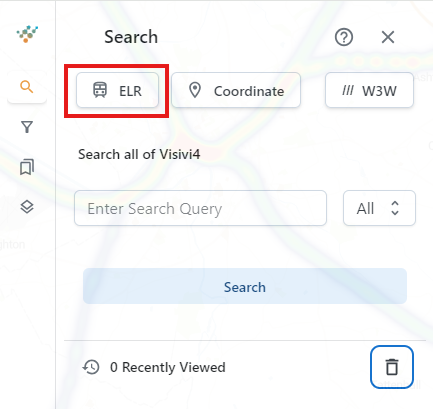
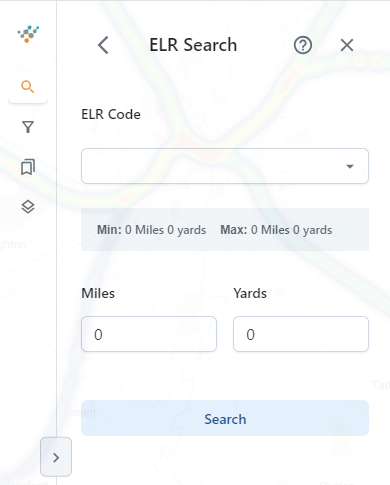
From here a known ELR can be entered or the dropdown used to scroll for an ELR of interest. The minimum and maximum searchable values will be returned for a given ELR:
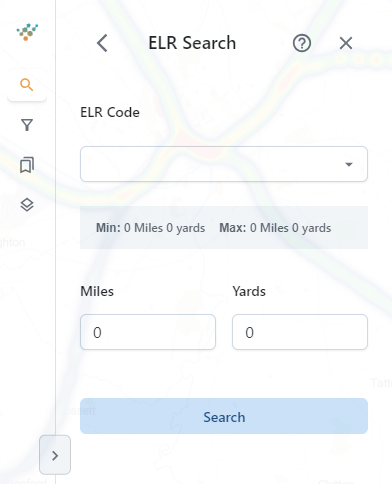
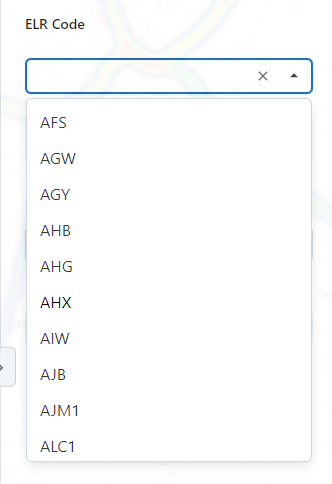
Specify an ELR either by using the dropdown or typing in the boxes and select enter. The mapping will zoom to the ELR populate the search results:
Inspect Location to find ELR
ELR can also be identified from both the background mapping and aerial imagery. Select the inspection tool to the right of the page and select a section of track to be identified by left-clicking the tracks layer. This will open the inspection results panel and populate with a number of features including the ELR:
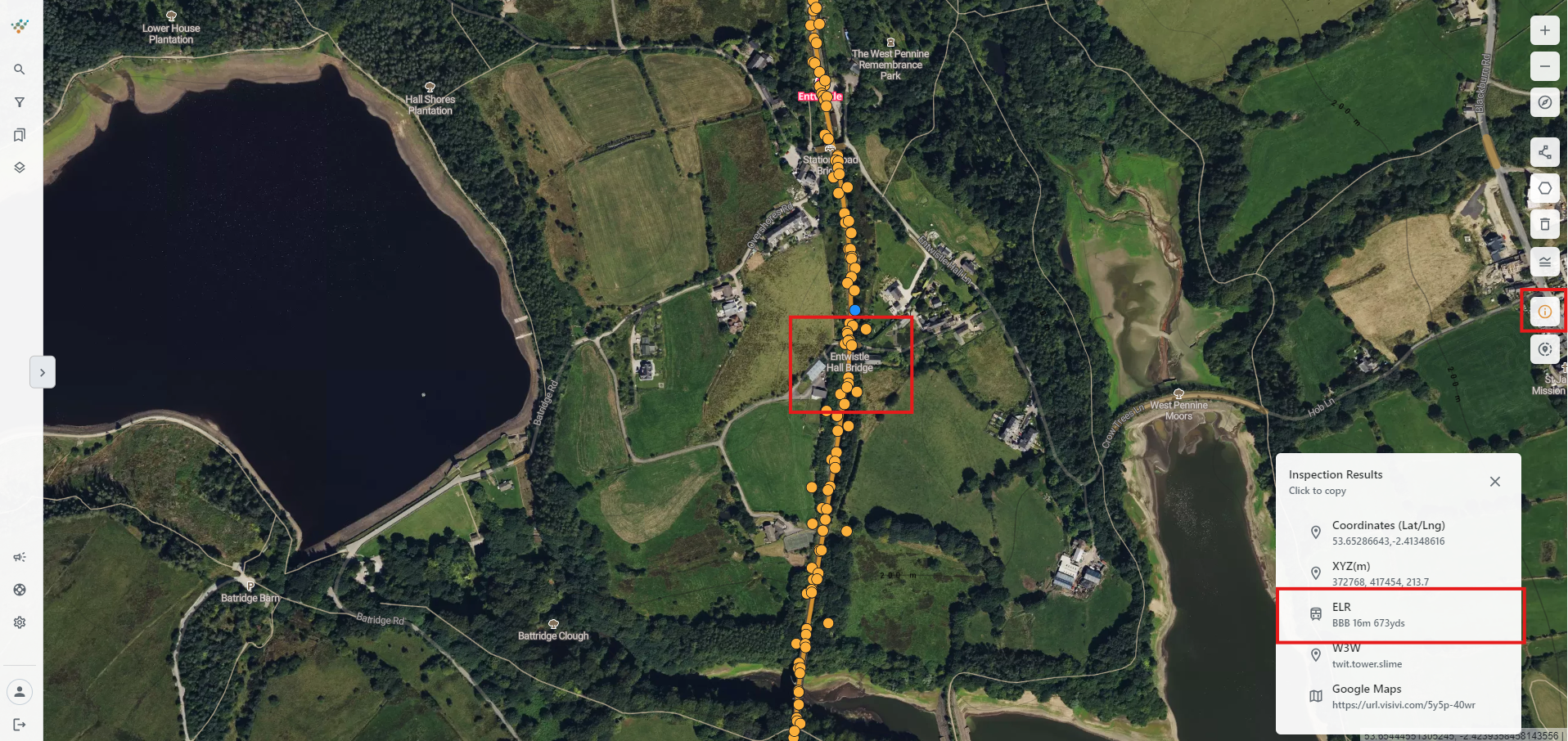
The same is to be done on the full screen imagery to identify the ELR here: