
As part of our Routeview2 offering, we have developed a new centralised authentication system through which users will now login to the project.
Network Rail Employees - Access is now granted through your NR SSO account.
External Contractors & Third Parties - Access is granted through your email address and password.
How do I login?
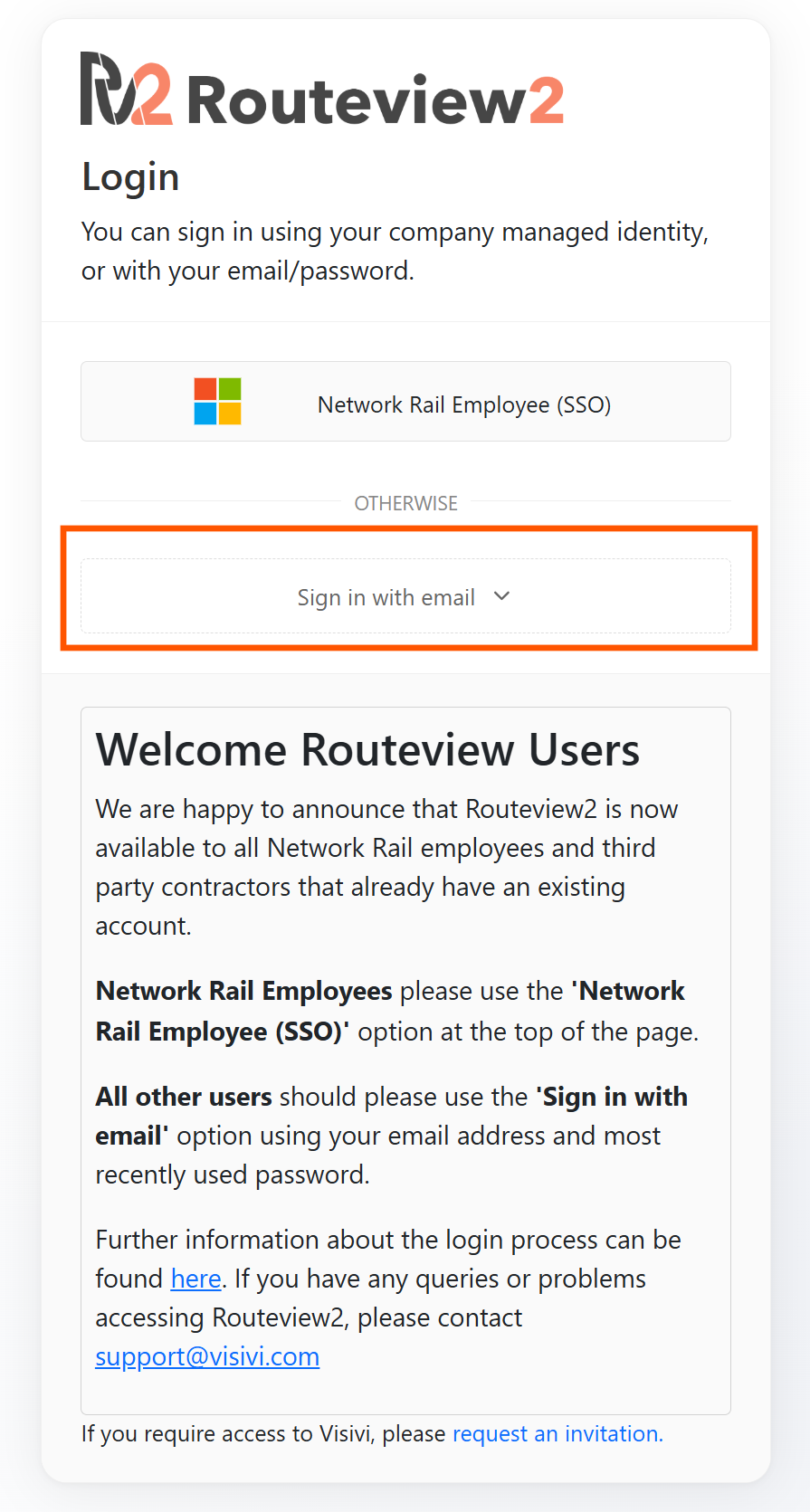
Go to https://routeview2.com. If it is your first time logging in or you have logged out of an old session you will be redirected to https://auth.routeview2.com and be presented with the following page:
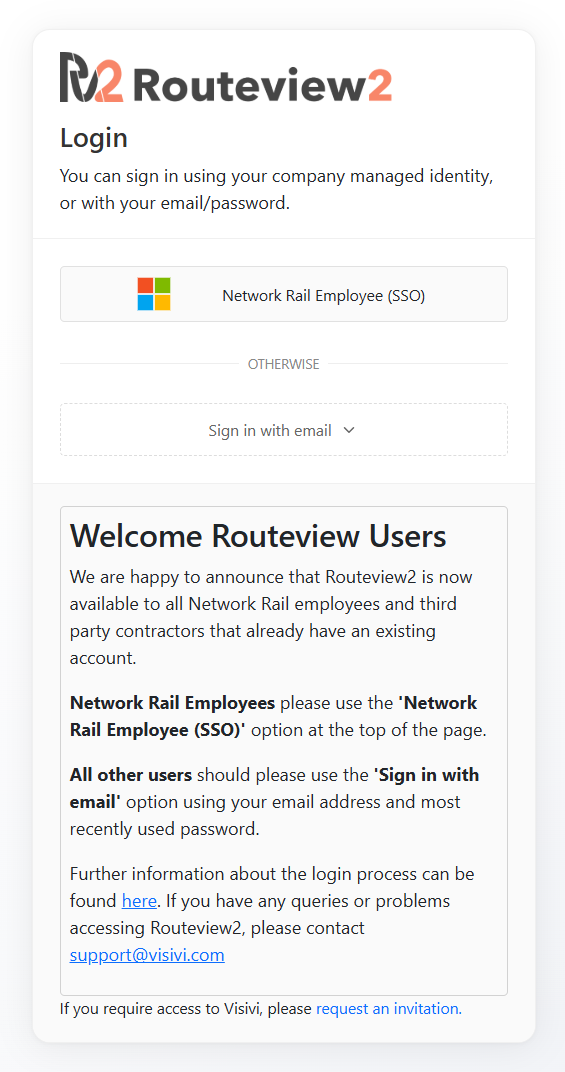
SSO access for NR Employees
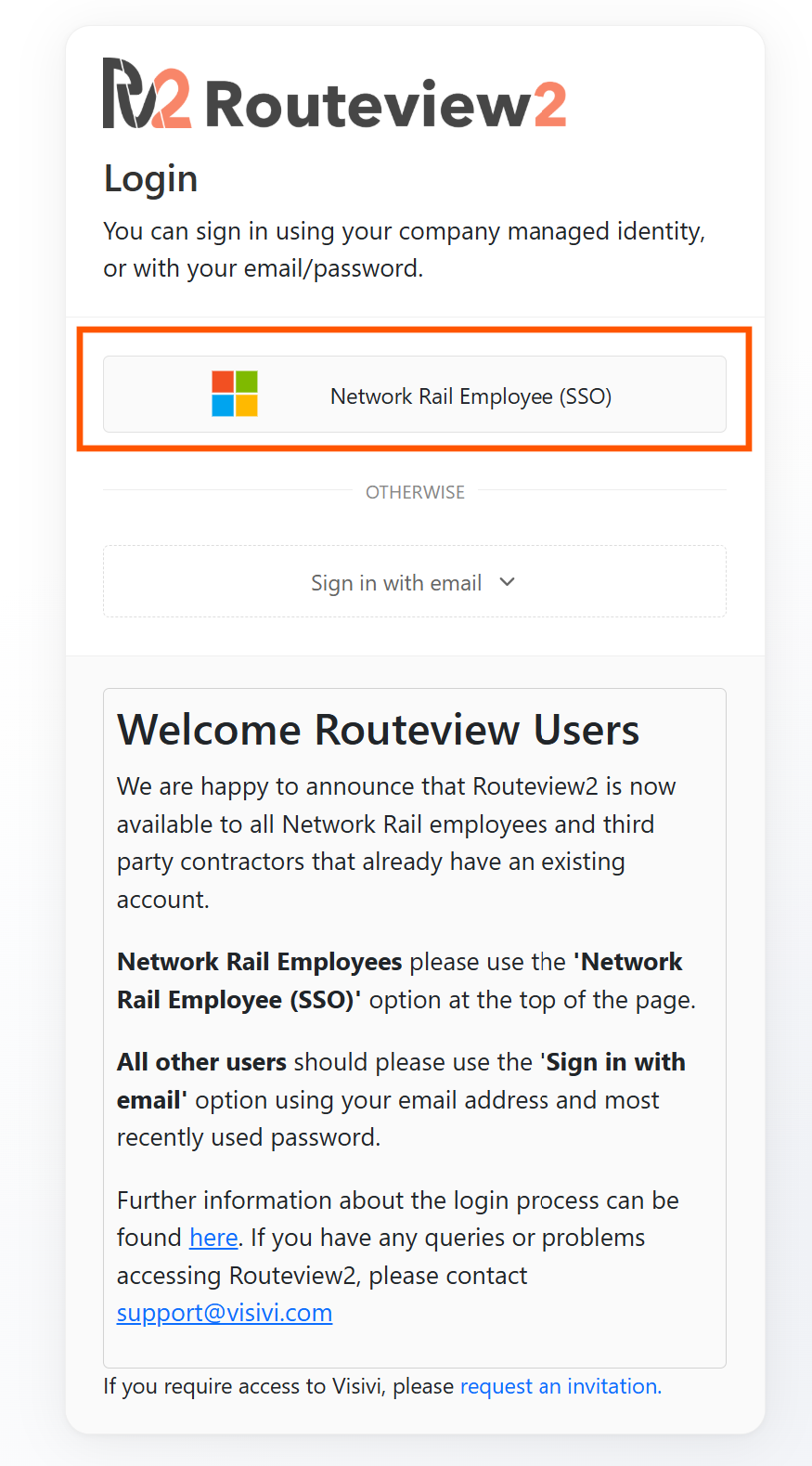
Network Rail Employees can login simply using your SSO account by selecting the ‘Network Rail Employee (SSO)' tab at the top of the page:
This will redirect you to a Microsoft authentication page where you can login by entering your organisational credentials. Once you are logged in you can access Routeview2 which is described below in the ‘How do I access Routeview?’ section of this guide.
Email Access for External Contractors & Third Parties
If you already have a Routeview account, you can login using your email address and most recent password without the need to initially set up your account. Please select the ‘Sign in with email’ panel on the login homepage highlighted in the steps below and enter your existing login credentials.
If you work for an external contractor or third party and have access to Routeview2 you will continue to login using your email address and password. As part of this process you will first need to verify your account. Following the creation of your account you will receive an email from authentication@noreply.visivi4.com with the subject title being Routeview2 Auth - Get started
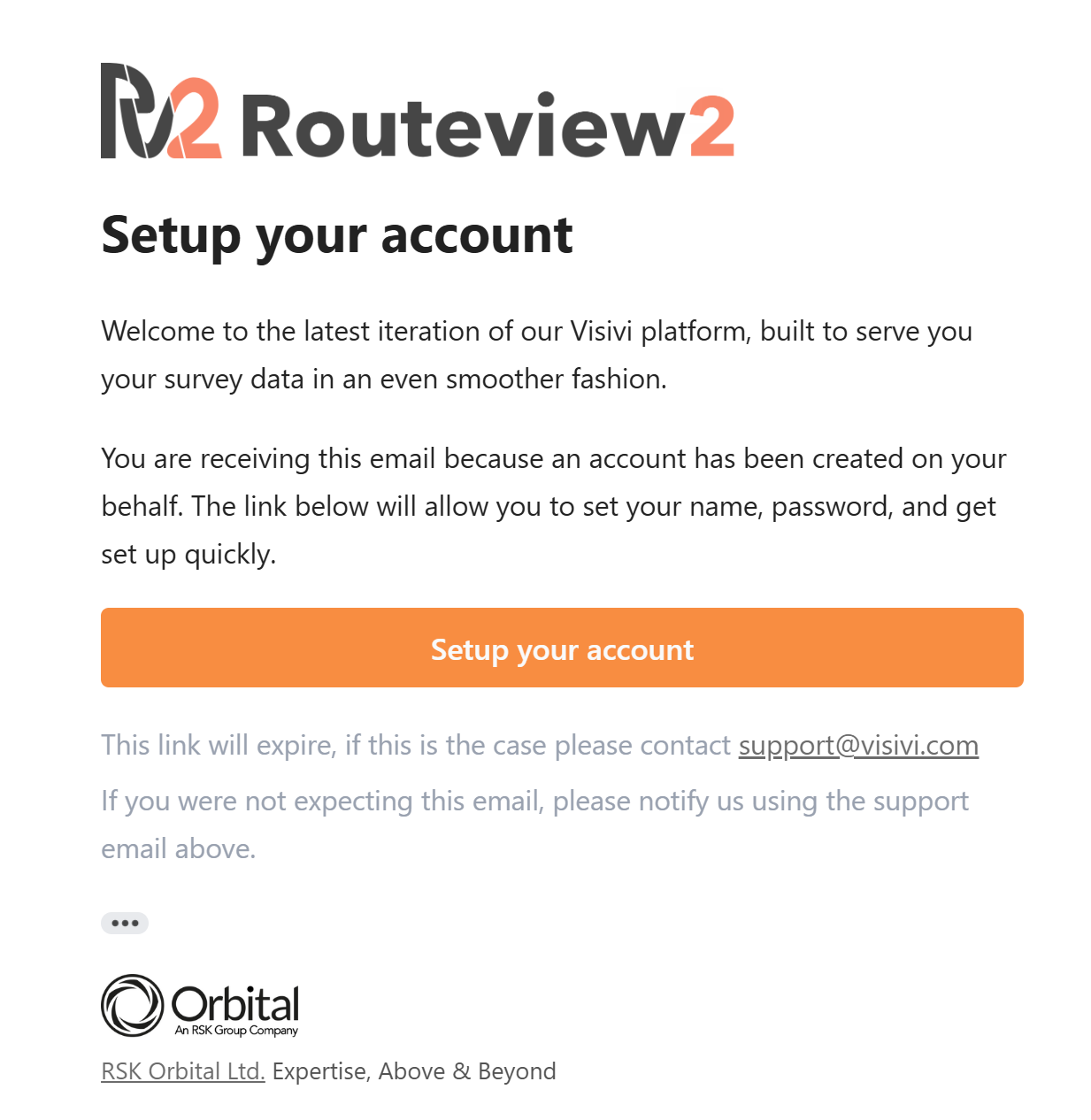
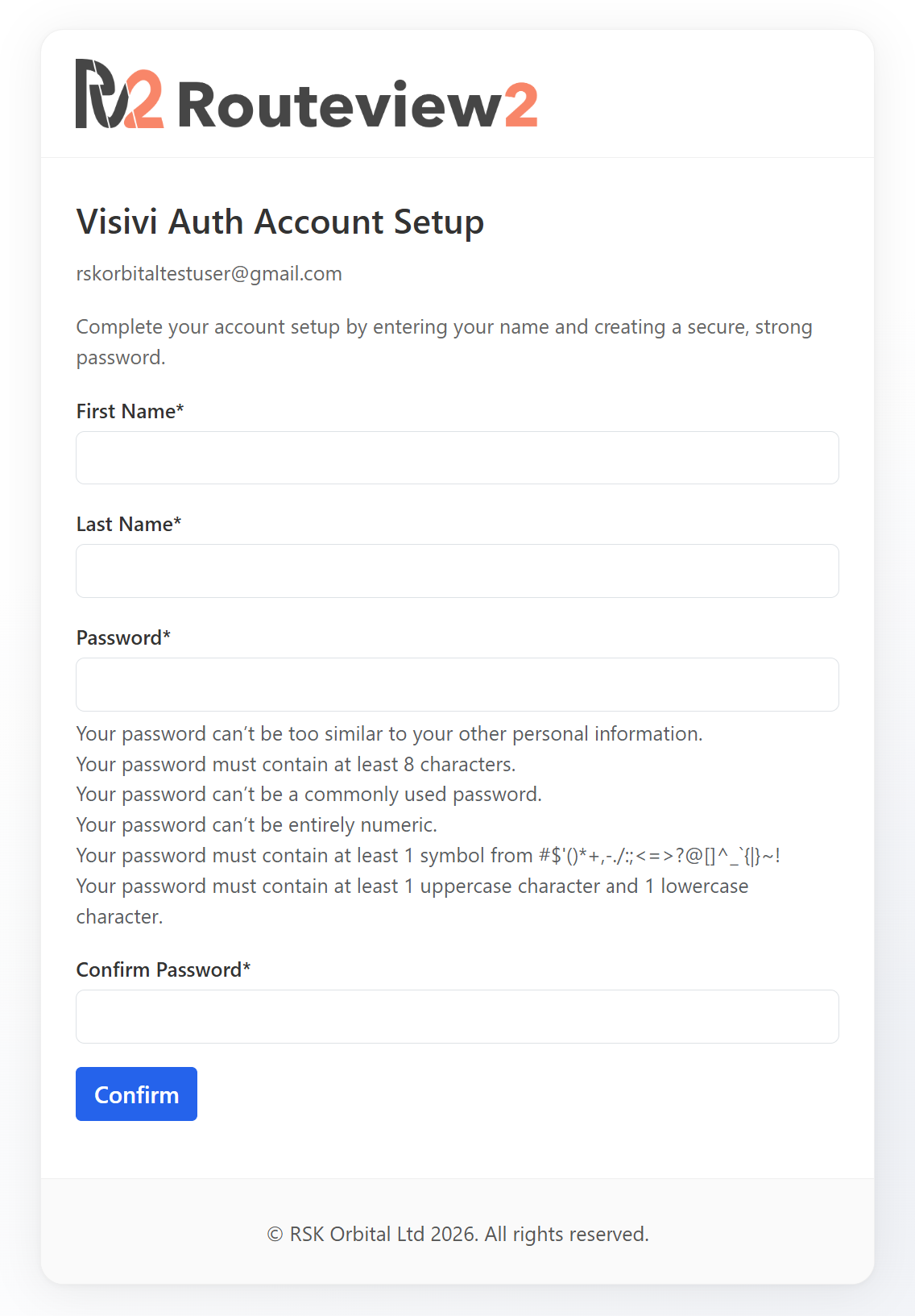
If you don’t see this email or are awaiting it please check your junk/spam folder as the emails sometimes get filtered there on delivery. Select the ‘Confirm Account' button or link shown in the email and this will take you to the Visivi Auth Account Setup page:
Once you have set up login credentials you will be prompted to return to the Routeview2 login page. You now can login to Routeview2 using the ‘Sign in with email’ option highlighted below and the login details you just set and select ‘Sign in’:
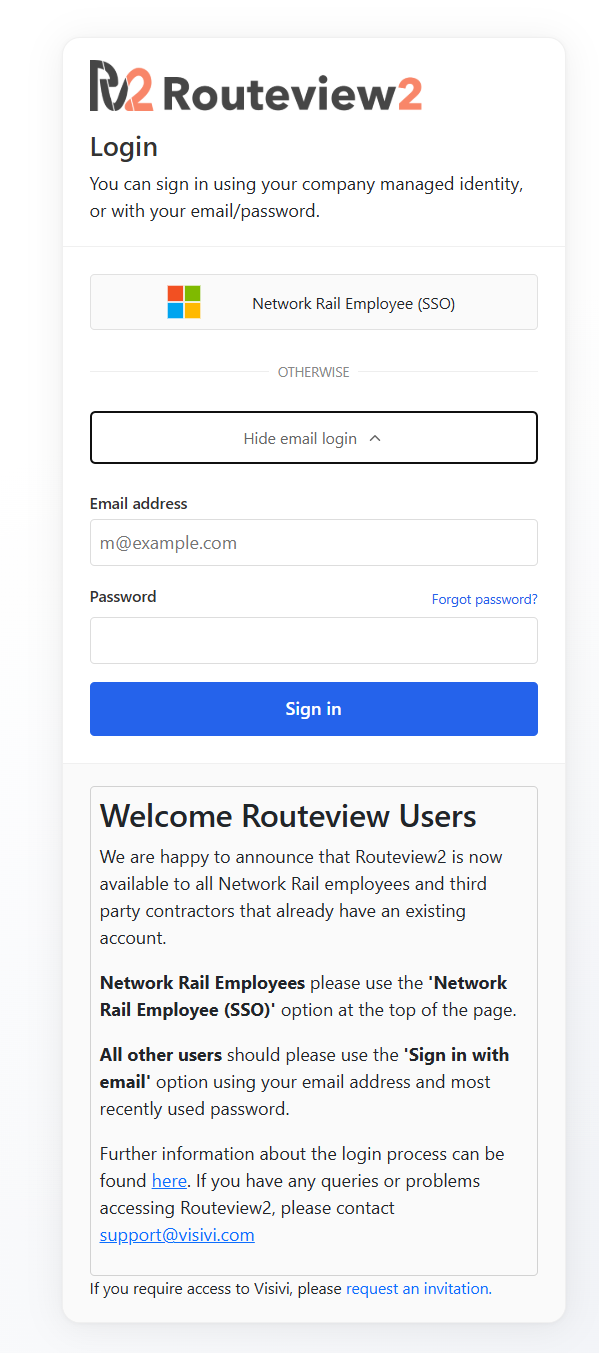
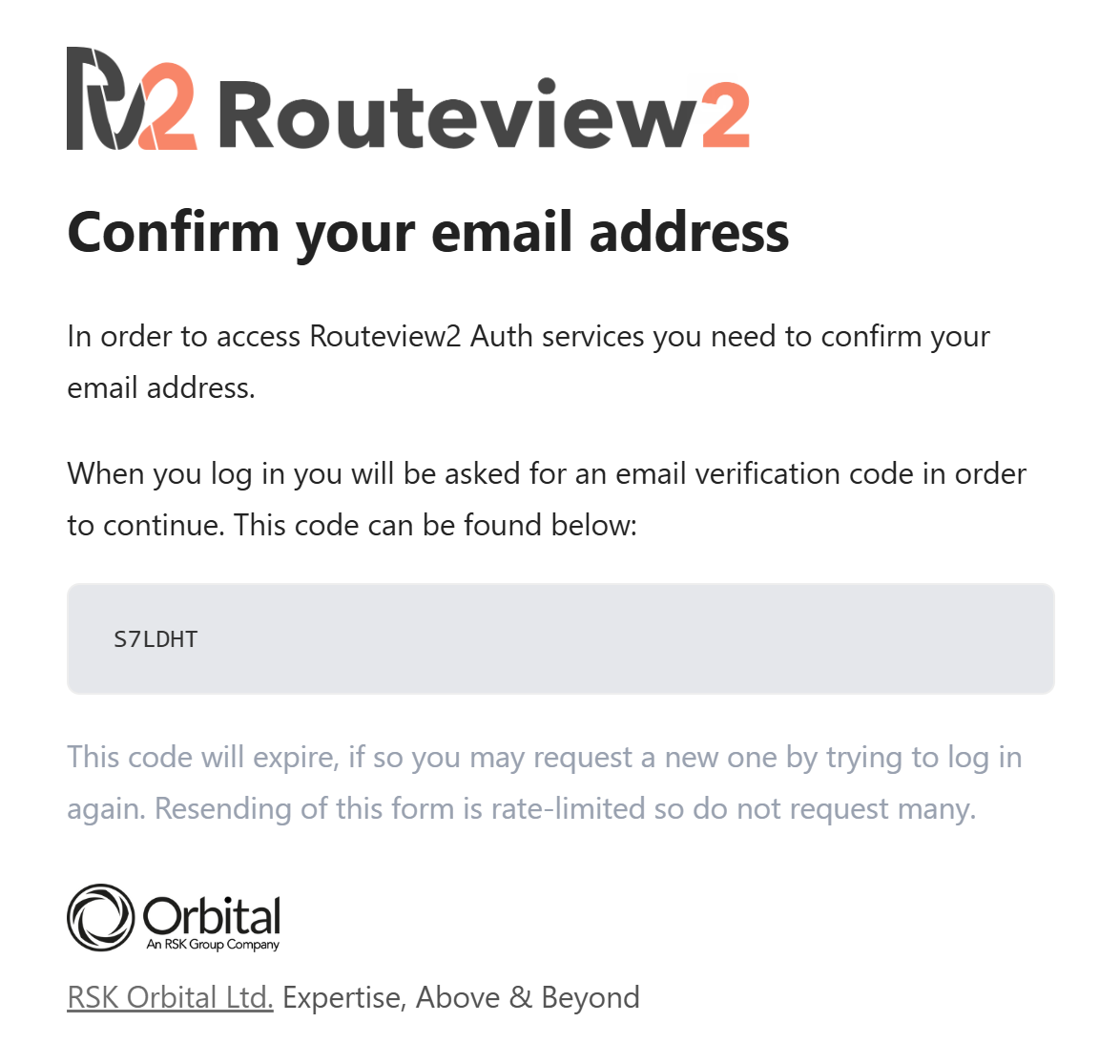
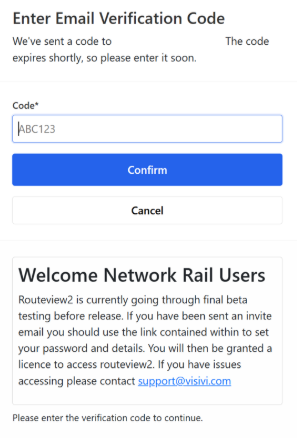
On logging in for the first time you will be required to verify your account by entering a verification code that has been sent to your email address:
How do I access Routeview?
Once you have logged in either via SSO or through an Individual User Licence, you will be taken to the Routeview2 Auth Homepage. From here you can access Routeview2 from the ‘Connected Apps’ section by selecting the ‘Open site’ button highlighted below
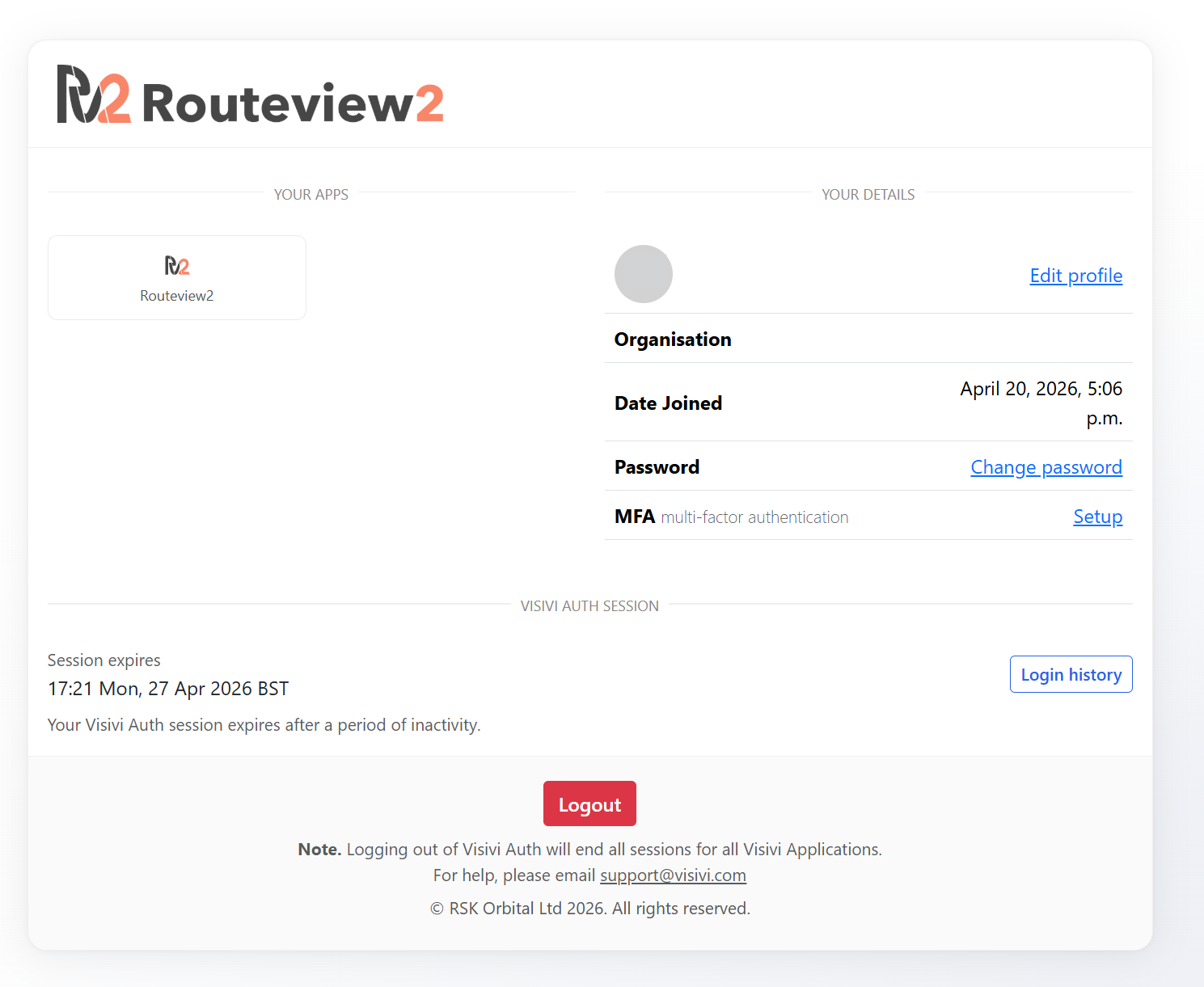
You can also edit your profile information and change your password as well as set up multi-factor authentication for your login should you wish to further secure your account.
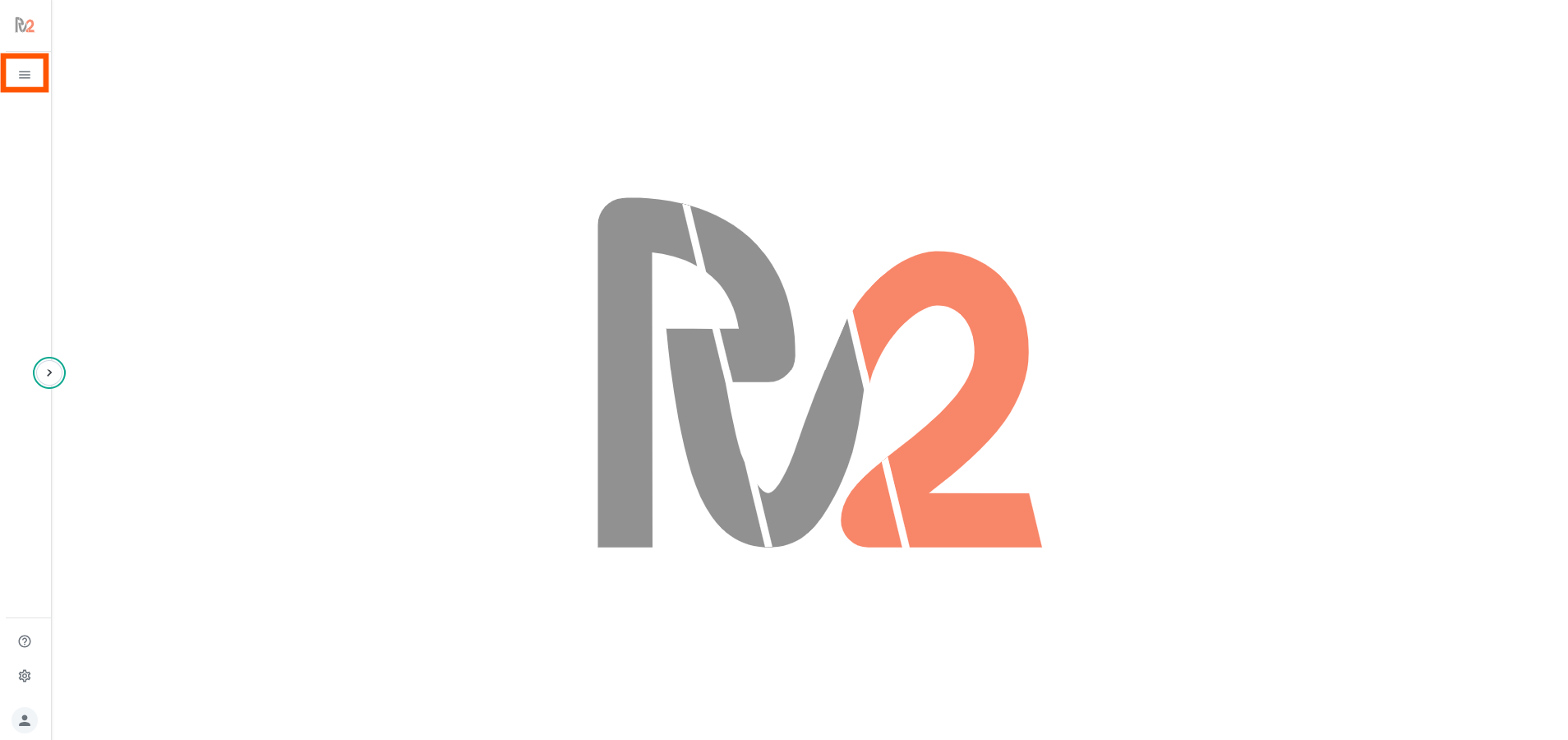
Once you have opened the Routeview2 application you will be redirected. You may be required to select the project from the project list to open it. This should show by default. If you are unable to see it select the project list icon in the top left corner of the page:
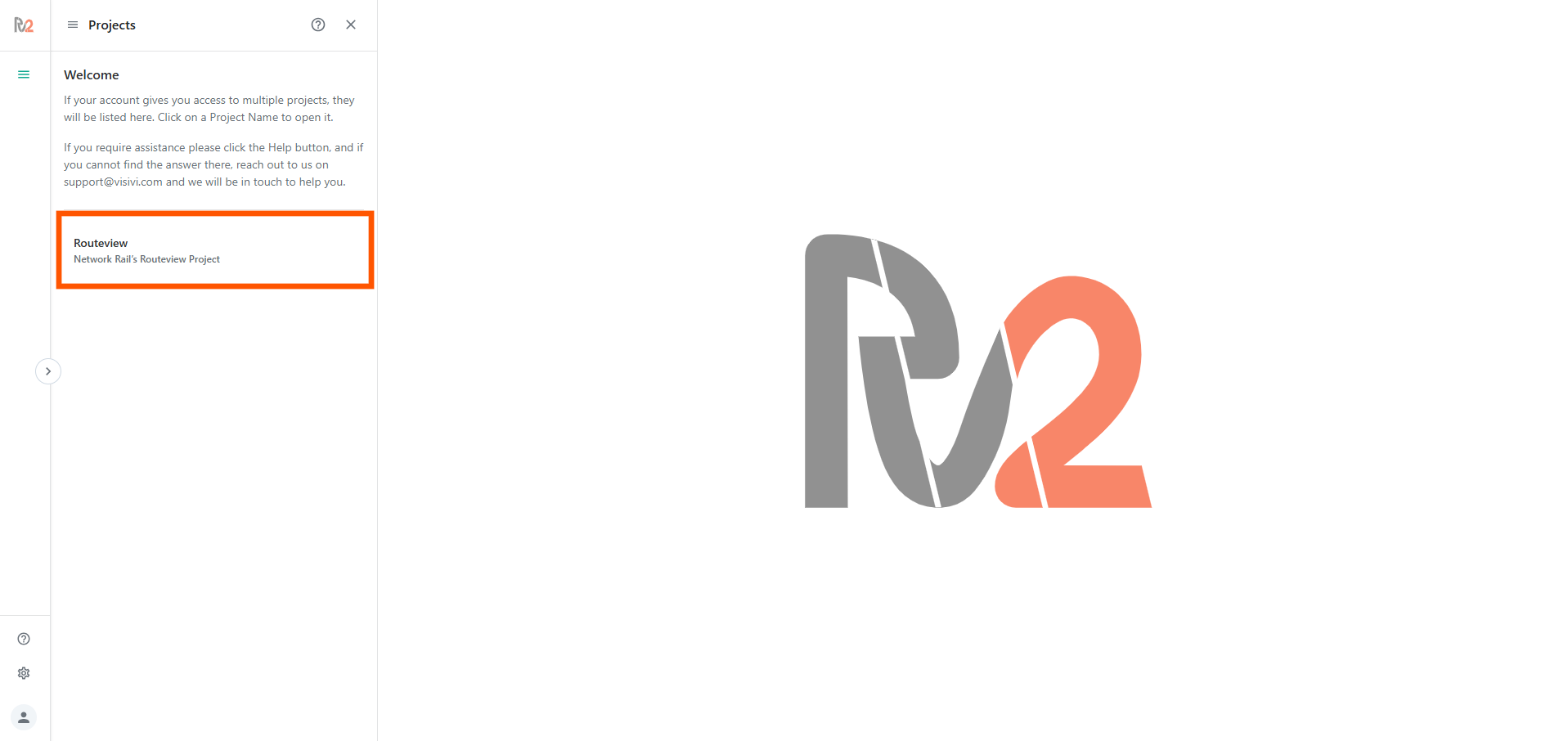
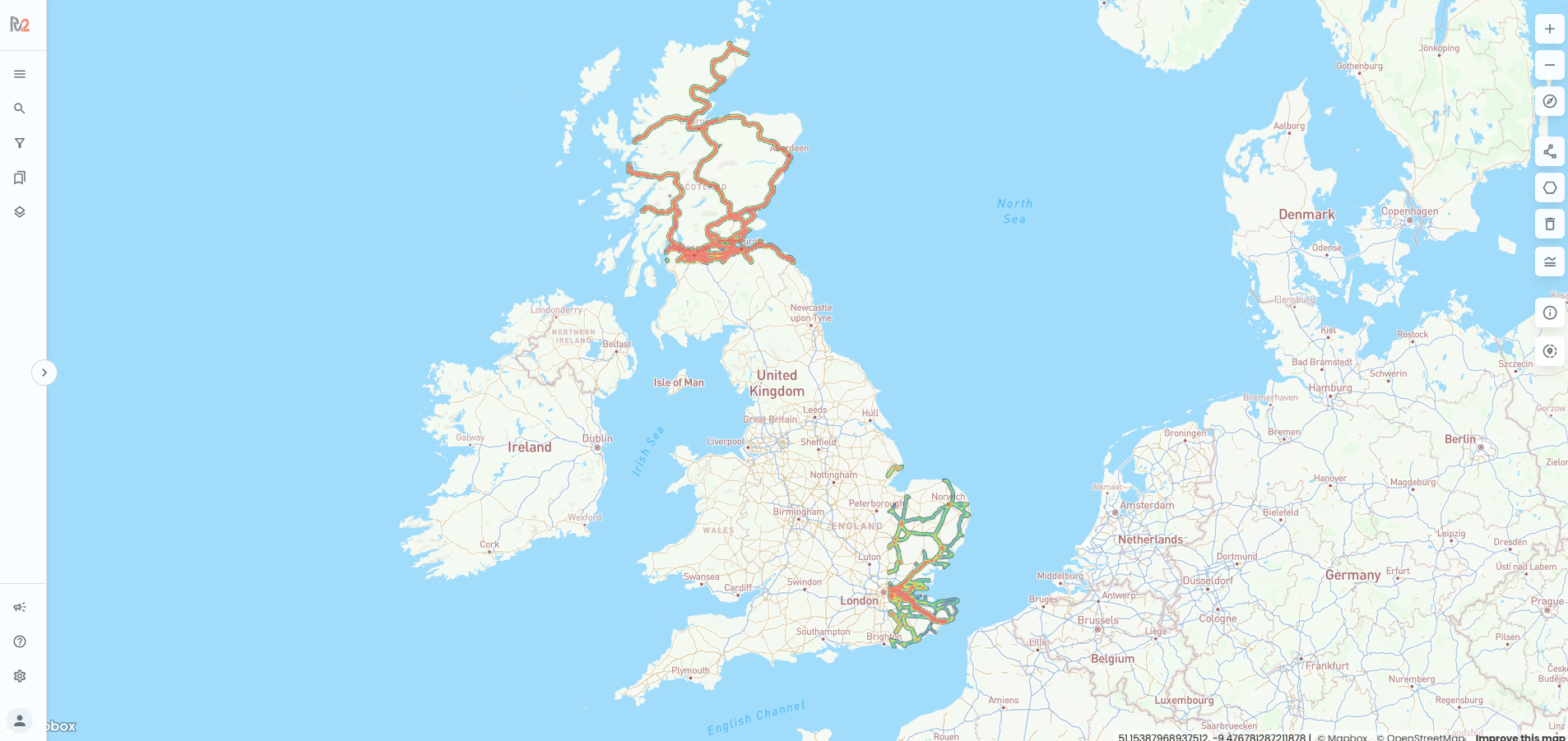
This will open the project list from where you can load Routeview 2:
Support
If you require any assistance with the above process or would like to request an account to Routeview please contact support@visivi.com